
What you’re seeing
You open an image in the Media Library and its Used in section lists a Demo.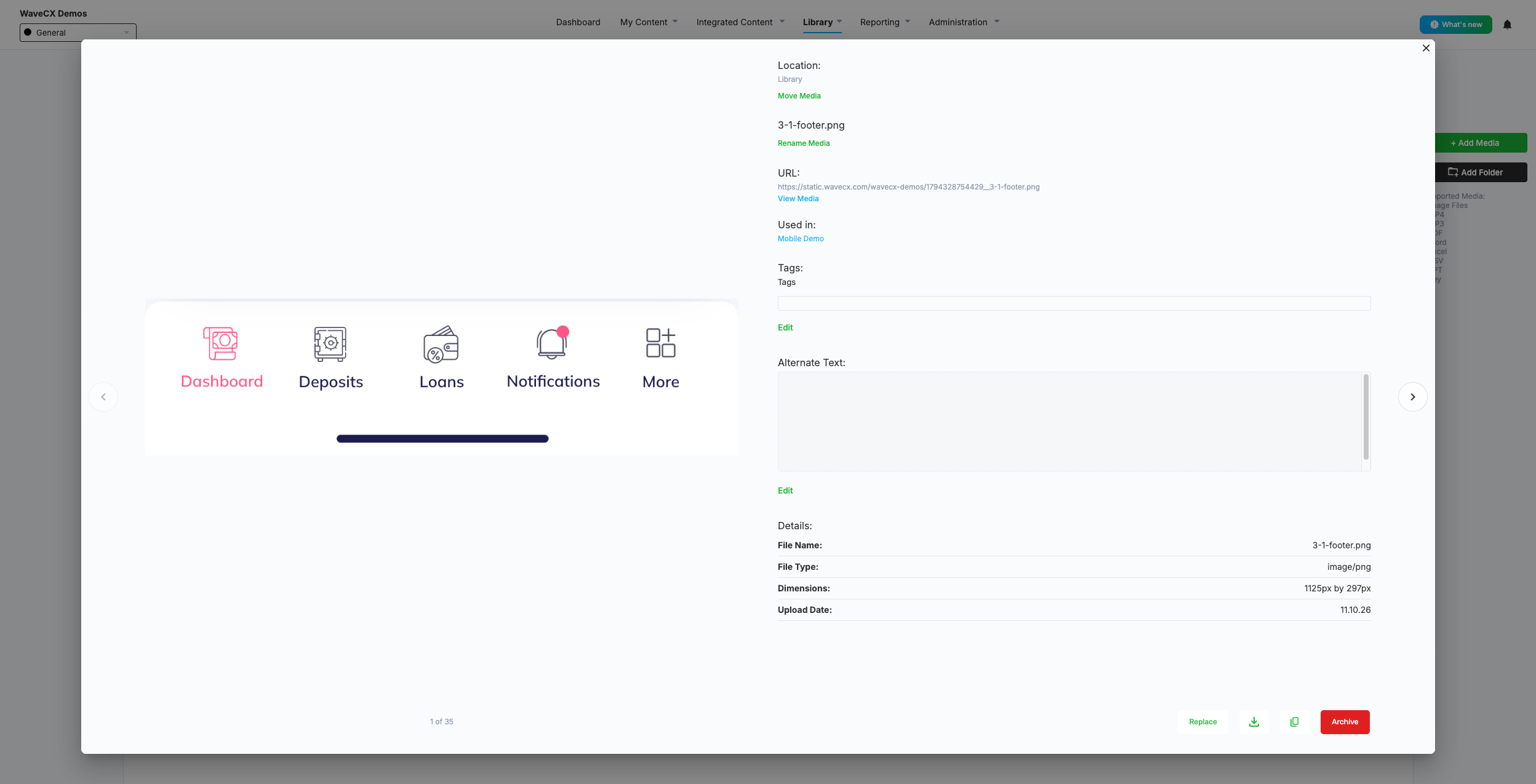
Why it happens
WaveCX keeps media on a step even when the step no longer displays it. That way, you can easily bring the image back later without uploading it again. There are two common cases:- Header & Footer is off – The step has a header or footer image, but Add Header & Footer is turned off. The image is saved but not displayed.
- Use previous is on – The step is set to use the previous step’s image, header, or footer. The step displays the previous step’s media, but its own original image is still saved underneath.
How to find it
- In the Media Library, open an image.
- Under the Used in section, note which Demo (or other content type) it lists.
- Open that Demo and check the Features and Steps. Look for steps where the header or footer is turned off, or where media is set to use previous step.
How to clear it
If you are not bothered by this, you don’t have to do anything. Hidden media will not appear to viewers and doesn’t affect Demo functionality. The only effect is that you can’t permanently delete the image from the Media Library without a confirmation warning, because it is still technically in use.If you want to keep a clean Media Library, clear the hidden image using the steps below.
Steps
If the step used a Header or Footer but it is now turned off- Open the Demo and go to the step listed.
- Turn Add Header & Footer on. The saved header or footer image appears.
- Remove the image.
- Turn Add Header & Footer back off if you want it off.
- Save the Demo.
- Open the Demo and go to the step listed.
- Click the main media, header, or footer button, depending on where the image is listed.
- Turn Use previous off. The step’s original image appears.
- Remove the image.
- Save the Demo.