
How it works
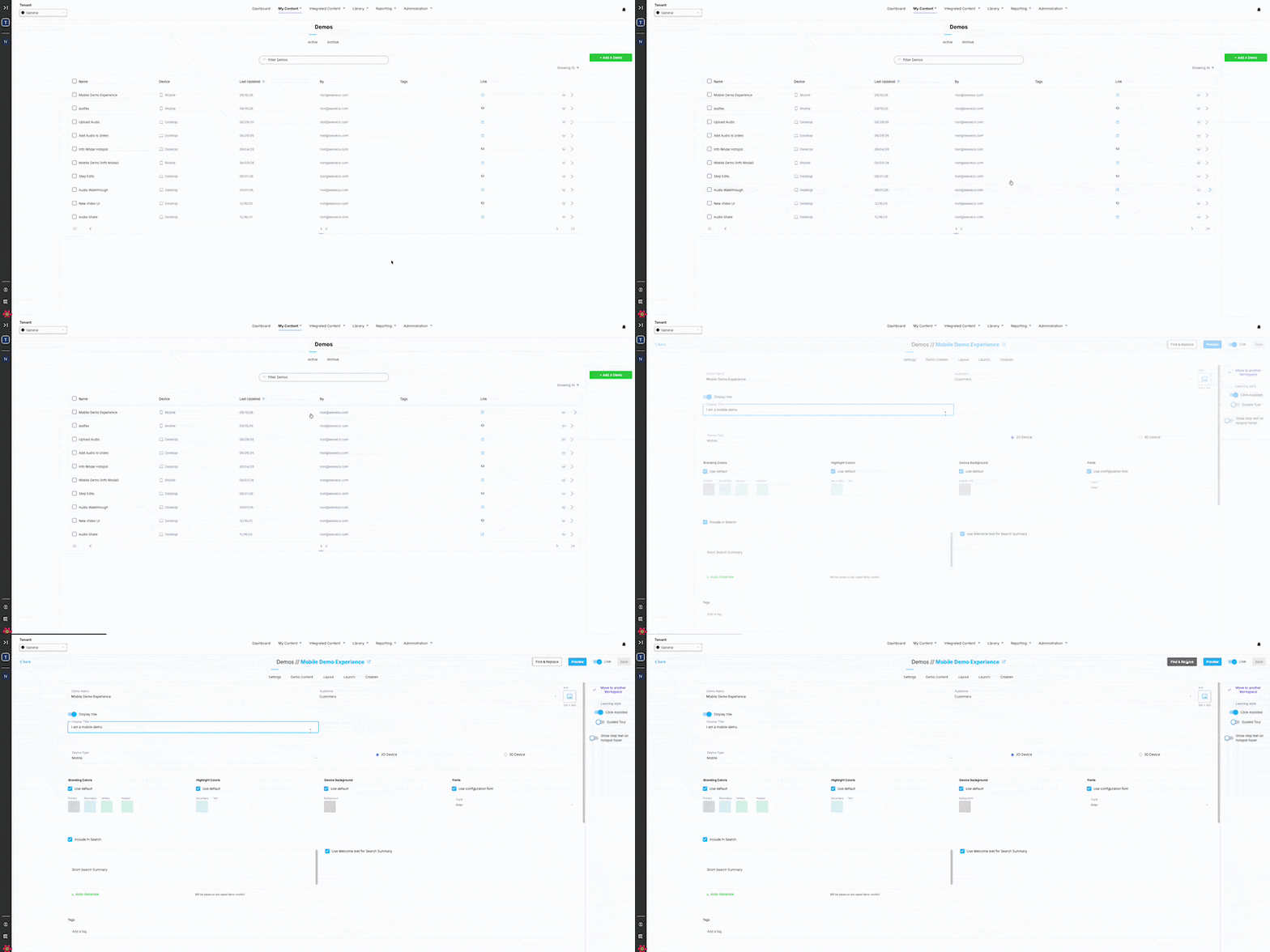
Find & Replace is a new tool built directly into the demo editor admin.- Search demo text content & links
- Find matches for the text you entered
- Replace matches individually or replace all
This is a new tool — there’s no prior “find and replace” experience it’s replacing.
High-level summary of Features
Search demo text
Finds matches across a demo’s name, messages, feedback questions, feature and step content, and more.
Match options
Narrow results with case-sensitive and whole-word matching, so “bank” doesn’t also catch “banking.”
Replace one, or all
Update a single occurrence, or use Replace All to update every match at once.
Find Next / Find Previous
Step through matches one at a time, jumping to and highlighting each one in the editor.
Search inside links
Turn on “Include link URLs” to search web addresses behind links.
Keep formatting
Replacing text that is bold, italic, or in list content leaves the surrounding formatting untouched.
Respects child-demo permissions
Automatically skips any field you don’t have permission to edit on a child demo.
Warns before it replaces content
Flags when a bulk replace may turn an inherited field into its own separate copy on a child demo.
Frequently Asked Questions
Where can I find it?
Where can I find it?
A “Find & Replace” button in the demo editor’s header, available no matter which tab you’re on.
Who can use it?
Who can use it?
You need edit permission on the demo (or the specific child demo/variant) you’re viewing.
Can I search inside links?
Can I search inside links?
Yes — turn on “Include link URLs” to also search web addresses behind links. It’s off by default so a copy change can’t accidentally break a link.
Is there anything it won't search?
Is there anything it won't search?
The demo’s own web address, custom CSS/JavaScript, and color settings are always left alone — so routing and styling can’t be accidentally broken.
Does this work on child demos?
Does this work on child demos?
Yes. It automatically skips any field you don’t have permission to edit, and warns you before a bulk replace would turn an inherited field into its own separate copy.
How do I save my progress?
How do I save my progress?
Replacements happen in your working session — closing without saving keeps none of the changes.
What happens if I close without saving?
What happens if I close without saving?
Nothing is kept. Replacements only apply once you save the demo.