
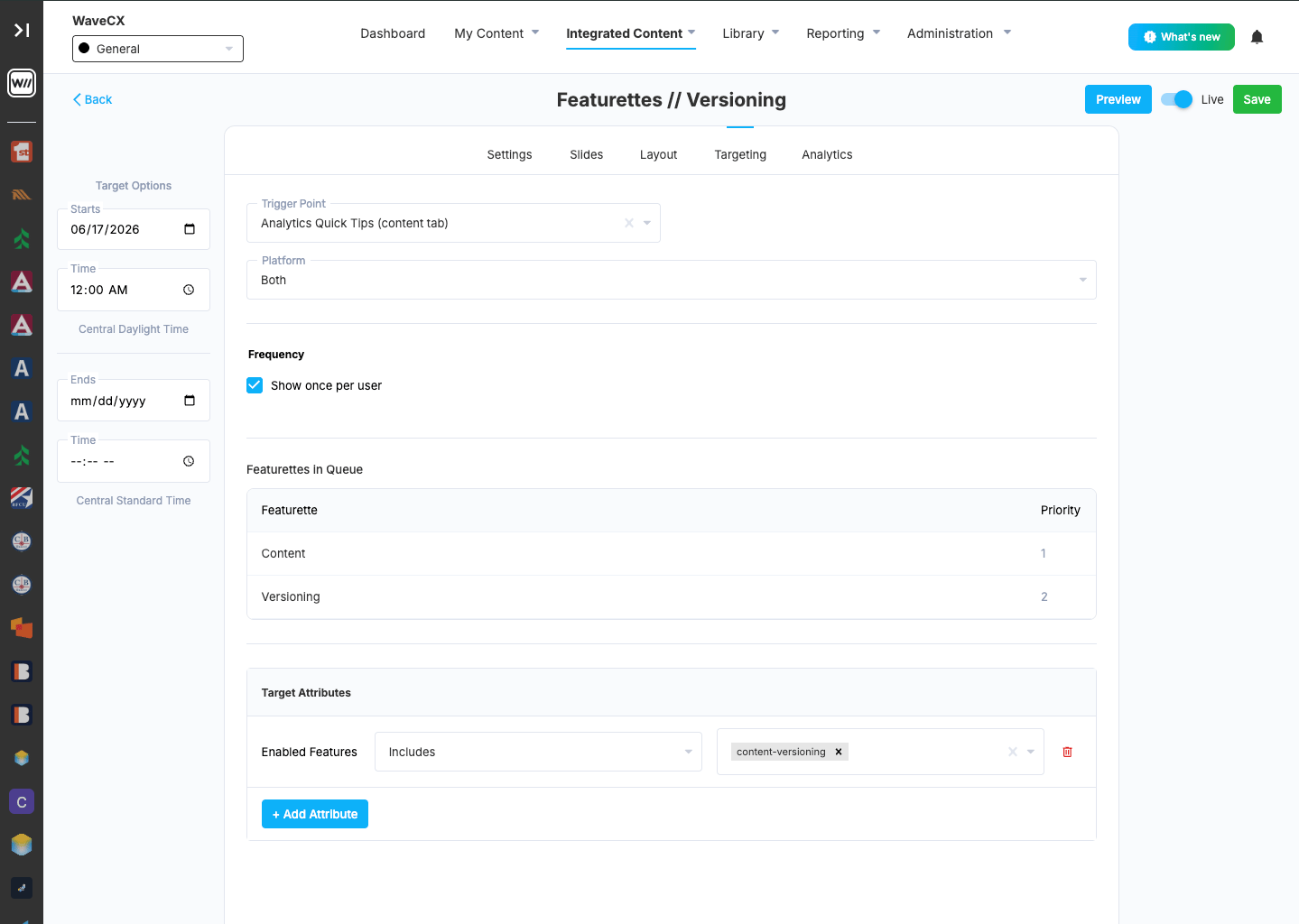
Trigger Point
Choose the event that makes the Featurette appear. The options depend on your integration. They can include:- Page views
- App screens
- Button clicks
- Custom events
Platform
Choose where the Featurette appears:- Both
- Mobile
- Desktop
Frequency
- Show once per user: when selected, each user sees the Featurette only once. When unchecked, it can appear again the next time the trigger point happens.
- Dismissal Options: these can only be turned on when Show once per user is unchecked. You will have options that adds buttons to the Featurette, “View Later” and “Don’t Show Again”, and you can turn each one on or off separately. When enabled, one or both appear in the Featurette’s footer, next to each other.
“View Later” button
Turn this on to give users a button that hides the Featurette for now.- Button Style: choose how the button looks, for example Icon.
- Button Text: the button’s label, for example “View Later”.
- Make CTA full width on mobile: Check the box to have the button fill the phone screen width.
- Days: the number of days before it shows again, for example
- Sessions: the number of sessions before it shows again.
Leave a field blank to skip that limit.
“Don’t Show Again” button
Turn this on to give users a button that dismisses the Featurette for good. The user won’t see the Featurette again unless an admin resets it or changes the targeting.- Button Style, Button Text and Make CTA full width on mobile work the same way as for View Later.
- Confirmation Prompt: the question users see, for example “This message won’t be shown again. Continue?”
- Confirm Button Text: the label on the confirm button, for example “Continue”.
- Cancel Button Text: the label on the cancel button, for example “Cancel”.
Featurettes in Queue
This table lists the Featurettes that share the same trigger point, along with each one’s Priority. When more than one could appear at the same time, the Featurette with the higher priority shows first. Priority 1 is first.- Reordering the queue: Drag and drop the Featurettes in the queue to change their priority
Target Attributes
Target Attributes limit the Featurette to users who match certain conditions. Users who don’t match won’t see it. To add a target attribute:- Click + Add Attribute.
- Choose an attribute
- Choose how to match
- Choose one or more values
Target Options
Use these to schedule when the Featurette runs.- Start: the date and time the Featurette begins showing. If you leave the start date or time blank, the Featurette goes live as soon as it has a trigger point and Live is on.
- End: the date and time it stops showing. Leave these blank to keep it running with no end date.
Saving your changes
Click Save in the top right to apply your changes. Live must be on for the Featurette to show to users.- What it takes to go live: A Featurette can only go live if it has a trigger point and its start date has arrived. With Live on, it also checks the start date and time before it appears.