
Getting Started
To configure the Page Hero section, start by adjusting the Background and Text Colors to align with your brand’s aesthetics. Use contrasting colors to ensure the text is easily readable. You can also adjust the Top and Bottom Padding to control the spacing around the hero section for optimal layout on both desktop and tablet.Show Page Hero
The Show Page Hero toggle is in the top-right corner of the editor. Turn it On to show the banner. Turn it Off to hide it, and the page will start with your first content block.Desktop & Tablet background
These settings control how the hero looks on larger screens.- Background Color: The banner’s fill color. It shows behind the image, or on its own if you don’t add an image.
- Text color: The color of the title text. Pick a color that stands out clearly against your background.
- Image: An optional background image. Click the box to upload one, or click the red × to remove it. The image size appears below the thumbnail. Use a wide, short banner image so it fills the space well.
- Top Padding / Bottom Padding: The space, in pixels, above and below the title. Bigger numbers make the banner taller.
Hero Title
Next, modify the Hero Title with engaging text to introduce the page content. Lastly, enable the Page Filtering option to allow users to filter the page by topic, guiding them to relevant content. Make sure to preview and save your changes once satisfied with the configuration.Title
The is the title text shown in the banner. Use the toolbar to format it:- B / I: Bold or italic.
- Alignment: Left, center or right.
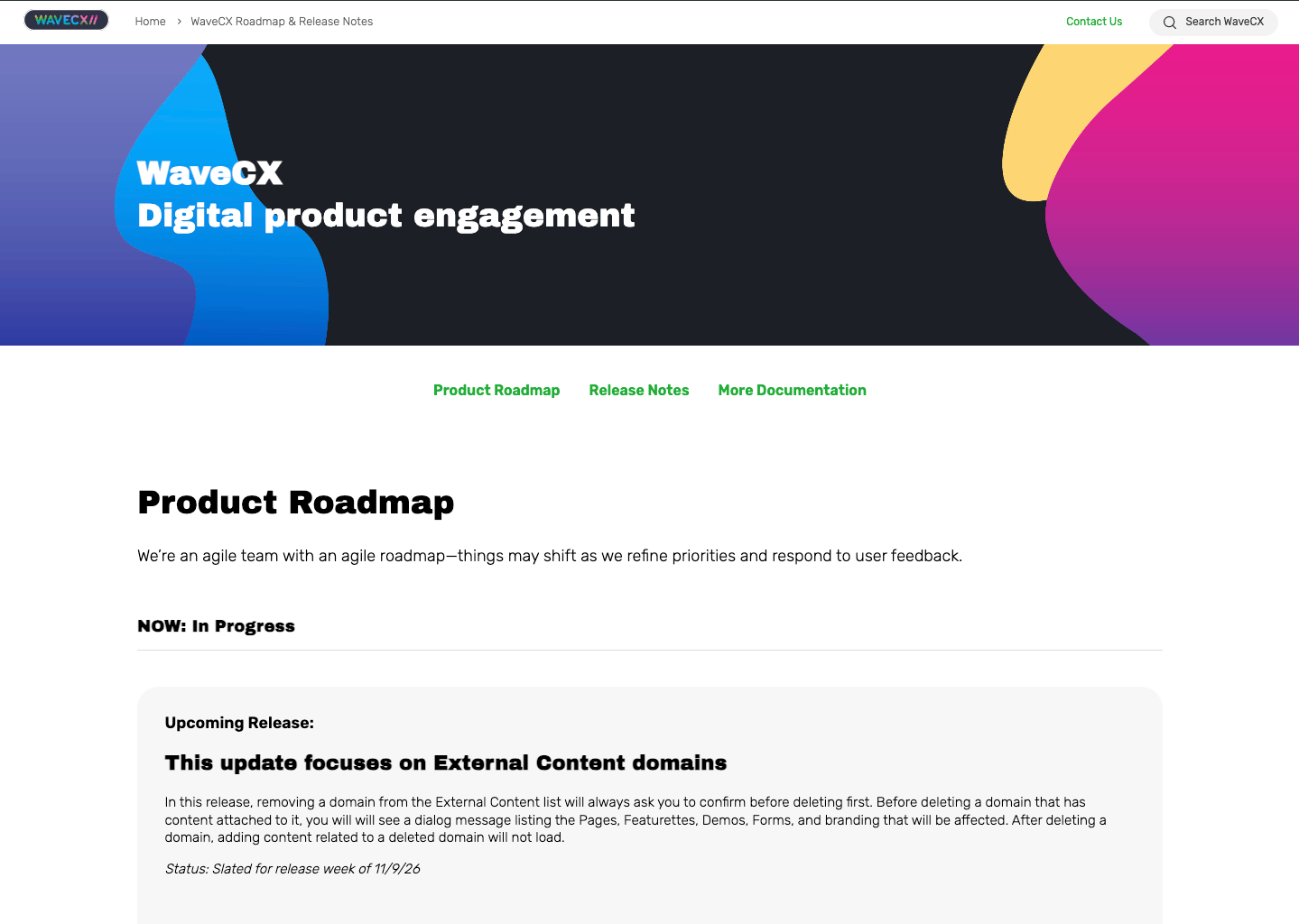
Example:WaveCX
Digital product engagement
Digital product engagement
Allow for Page filtering
Turn this on to add a search bar to the hero, so visitors can filter the page by topic.- Filter input text: The placeholder text in the search bar, for example “Search and filter by topic.”